How to Check and Lower your Ping in League of Legends (LoL)
Ever wondered why your Yasuo dash feels slow while your opponent's Zed combo is perfect? The answer might be in your ping numbers. Since League of Legends started in 2009, millions have played. But not all have the same network performance.
Split-second reactions are key in LoL. Your ping affects every action you take. Knowing how to check ping in LoL helps us fix connection issues before they cost us LP.
Checking ping latency LoL servers report shows how fast data travels. Lower numbers mean quicker responses. Higher ping causes frustrating delays.
We can run a League of Legends ping test to find lag sources. This helps us fix issues and improve our game. We can climb the ranked ladder without network problems holding us back.
Key Takeaways
Press Ctrl + F during any match to instantly display your current ping in the top-right corner
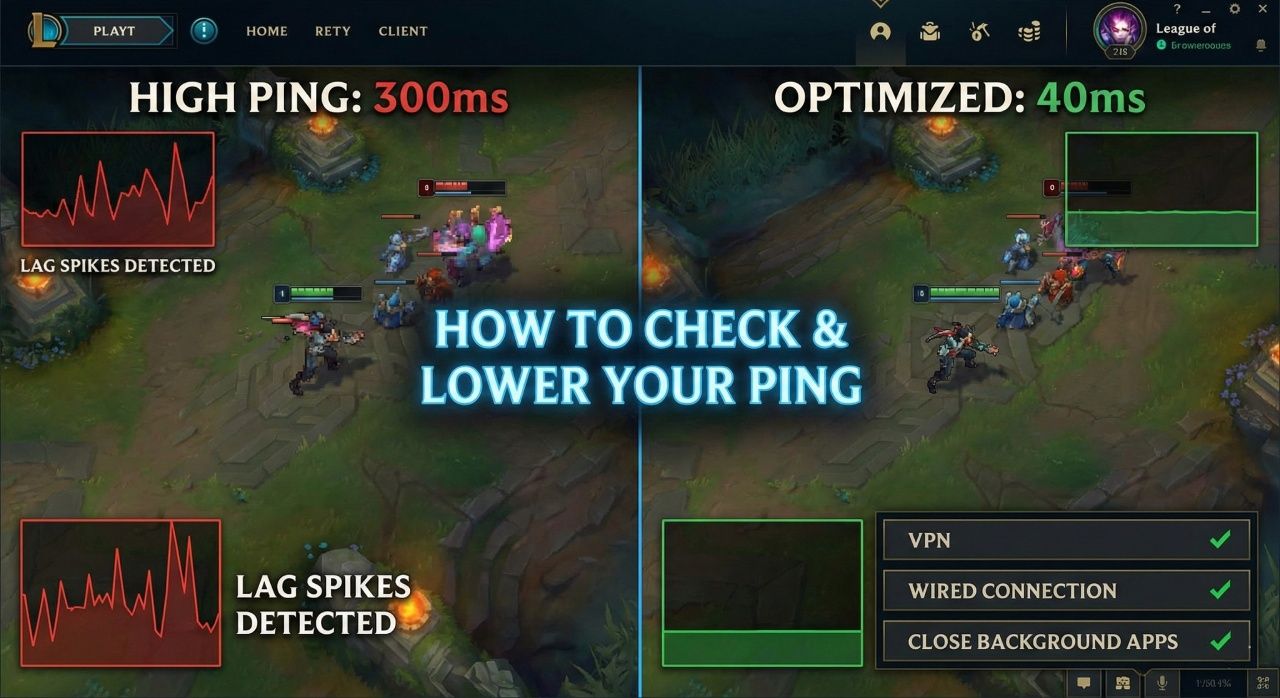
Ping under 60ms provides smooth gameplay while anything above 100ms creates noticeable delays
Command Prompt lets us test direct connections to specific League of Legends server regions
Wired Ethernet connections deliver more stable ping than Wi-Fi in competitive matches
Background applications like streaming services can double or triple your in-game latency
Server location affects base ping - players closer to data centers enjoy lower latency
Understanding Ping and Its Impact on Your League of Legends Gameplay
Every millisecond is crucial when we're fighting on the Rift. Ping shows how long it takes for data to go from our computer to the game server and back. This time affects whether our shots hit or miss.
Knowing how your network connection affects League of Legends can help you climb the ranks. It's the difference between getting better and staying stuck.
What Is Ping and Why It Matters in LoL
Ping is the time it takes for our actions to show on screen. We measure it in milliseconds, and lower numbers mean faster action. A stable connection lets our champions act fast.
Pressing Ctrl+F shows our ping in the top-right corner. This is important to check during matches.
How Ping Affects Champion Response Times and Ranked Matches
High ping causes frustrating delays in our gameplay. It makes reacting to the game slow. Last-hitting minions and dodging skill shots become hard.
In ranked matches, these delays can cost us. To improve, we need to know what causes these delays.
Ideal Ping Ranges for Optimal Gaming Performance
For competitive play, we aim for a ping under 50ms. A lol ping checker helps us keep an eye on our connection. Here's what different ping ranges mean:
Under 20ms: Lightning-fast response, perfect for high-level play
20-50ms: Excellent connection for ranked matches
50-100ms: Playable but may notice slight delays
Above 150ms: Major lag spikes affect gameplay significantly
How to Check Ping in LoL Using Different Methods
Checking your ping is the first step in fixing league of legends network problems. We can check our connection quality in several ways. These methods help us find latency issues before they affect our games.
Each method gives us different insights into our network. This helps us find out where connection problems happen.
Using In-Game Display Settings (Ctrl + F Method)
The quickest way to check ping is by pressing Ctrl + F on your keyboard. This shows your current ping and FPS in the top right corner. If this doesn't work, we need to set it up manually.
Click the gear icon in your client, then go to the Hotkeys tab. Find the Display section and set Ctrl + F to Toggle FPS Display. Save these settings and test them in your next game.
Running a League of Legends Ping Test Through Command Prompt
For a deeper look at how to improve ping, we can use Command Prompt. Press Windows + R, type "cmd" and hit Enter. Then, type "ping" followed by the server address.
Testing ping to League servers like typing "ping 104.160.131.3" for NA or "ping euw1.lol.riotgames.com" for Europe West shows response times. Run this test several times because network conditions change throughout the day.
Testing Server-Specific Latency with LoL Ping Checker Tools
Online tools like mmrlol lol ping checker test connections to all regional servers. These tools measure latency to many servers at once. We get instant results showing the best server for our location.
Essential Network Troubleshooting Steps to Reduce Ping in League of Legends
High ping in League of Legends? First, find out what's using your bandwidth. Things like streaming, cloud backups, and updates can slow you down. Open Task Manager or Resource Monitor to find these and close them before playing.
Switching to Ethernet from Wi-Fi is a top fix at home. Wi-Fi gets messed up by walls and other networks. But Ethernet gives a straight, fast connection. Network guides say Cat6 or Cat7 cables are best for gaming.
Resetting your network can fix sudden ping spikes. Unplug your router and modem for 30 seconds. Then, restart and check your ping with a lol ping test tool. Your antivirus might be slowing you down. Try disabling it while you play to see if it helps.
Keep your network drivers up to date to avoid lag. Update them through Windows Device Manager or use tools to make it easy. Test your connection at different times to find busy hours. Play when it's less busy or choose the closest server to cut down on travel time.
Advanced Solutions for Persistent High Ping Issues
When simple fixes don't work, we must look deeper. Start by turning off any VPN or proxy in Windows Settings. Go to Network & Internet, then Proxy. Turn off "Automatically detect settings" and "Use setup script". These can slow down your League of Legends game.
Try using Google Public DNS for better connection. Open Network Adapter Properties and change DNS settings. Use 8.8.8.8 as the Preferred DNS and 8.8.4.4 as the Alternate DNS. Then, renew your IP address with Command Prompt. Run ipconfig /release, wait, then ipconfig /renew and finish with ipconfig /flushdns. These advanced fixes help your connection to game servers.
Physical issues need special solutions. If you only use Wi-Fi, move closer to your router. Keep cordless phones and microwaves away from your gaming spot. Powerline Ethernet adapters are a good choice when cables are hard to use. Test other games to see if the problem is just with League of Legends. If it's only in this game, report it to Riot Games. Your ISP might need to fix external issues if other games also have high latency.
FAQ
How do I check ping latency in LoL during a match?
Press Ctrl+F during gameplay to see your ping and FPS. This shows in the top right corner of the screen. If this doesn't work, go to the gear icon settings. Then, find the HOTKEYS tab, DISPLAY entry, and set Toggle FPS Display to Ctrl+F.
What's the best lol ping test tool for checking server latency?
Use different methods for the most accurate results. The command prompt is reliable. Press Win+R, type cmd, then "ping" and the server IP like 104.16.49.37 or na.leagueoflegends.com. Online LoL ping checker tools also test by region, like NA, EUW, EUNE, and more.
How can I improve ping in LoL quickly?
Close apps that use a lot of bandwidth. Switch to Ethernet from Wi-Fi. Choose the closest LoL server. Restart your router and modem by unplugging them for 30 seconds.
What causes high ping in League of Legends?
High ping comes from server load, internet issues, apps using bandwidth, Wi-Fi problems, or distant servers. Check Resource Monitor (resmon) for bandwidth users. Test your network with different servers.
Is there a lol lag fix for consistent ping spikes above 150ms?
Yes, disable VPN and proxy, change DNS to Google Public DNS (8.8.8.8 and 8.8.4.4). Renew your IP with ipconfig commands. Use the Hextech Repair Tool from Riot Games for network troubleshooting.
What ping is considered good for ranked matches?
Ping under 50ms is ideal for great gameplay. Below 20ms is even faster. Ping over 150ms causes big lag spikes, making gameplay slow and unresponsive.
Should I contact my ISP about high ping issues?
First, test other games to see if it's just LoL. If it's across games, contact your ISP. If only LoL is affected, reach out to Riot Games support.