Key Takeaways
Press Ctrl + F during a match to instantly display your ping and FPS in the top-right corner
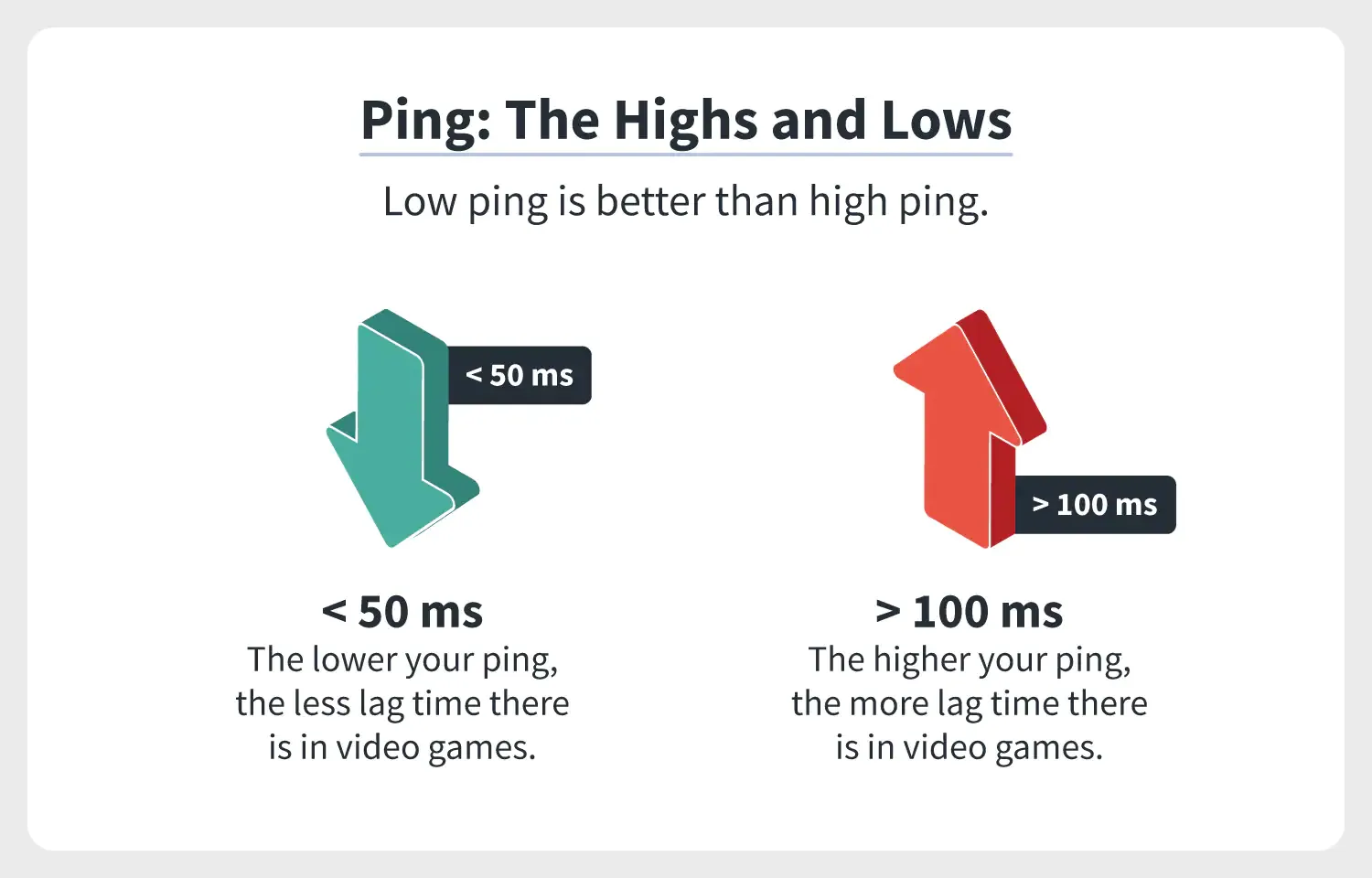
Good ping for League of Legends is typically under 50ms, with anything below 30ms being excellent
You can check ping through in-game shortcuts, the settings menu, or third-party websites
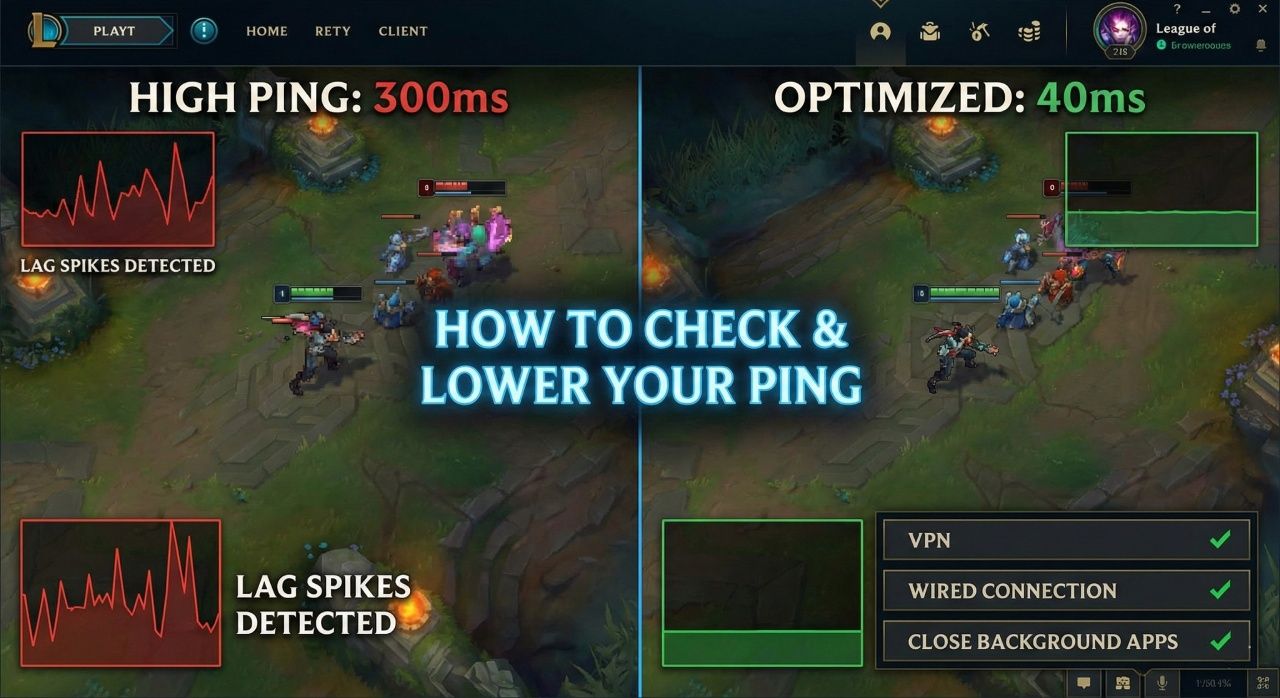
High ping above 100ms causes noticeable input lag and can severely impact your gameplay performance
Multiple solutions exist to reduce ping, including wired connections, closing background apps, and selecting optimal servers
Whether you’re climbing the ranked ladder or playing casual matches, your network connection can make or break your League of Legends experience. High ping creates frustrating delays between your inputs and character actions, potentially costing you crucial plays and team fights. Understanding how to check ping in League of Legends and optimize your connection is essential for any serious player looking to improve their performance.
In this comprehensive guide, you’ll learn multiple methods to monitor your ping, understand what ping ranges mean for your gameplay, and discover practical solutions to reduce latency issues. From quick in-game shortcuts to advanced troubleshooting techniques, we’ll cover everything you need to maintain a competitive edge through optimal network performance.
Quick Method: Check Ping Instantly In-Game
The fastest way to check your ping while playing League of Legends is to use the built-in keyboard shortcut. Press Ctrl + F during any active match, and your current ping will appear in the top-right corner of your screen alongside your FPS (frames per second). This method provides real-time network performance data without interrupting your gameplay.
The toggle FPS display feature activates immediately when you press the key combination, showing your ping in milliseconds. The display remains visible until you press Ctrl + F again to hide it. This shortcut only functions during live gameplay - it won’t work in the client menus, champion select, or while spectating matches.
To use this method effectively, launch a game through the practice tool or join a live match. Wait for the game to load completely, then press Ctrl + F. You’ll see both your ping and frame rate displayed prominently in the screen’s upper right corner. Many players prefer keeping this display active throughout their gaming sessions to monitor connection stability and performance fluctuations.
If the default keybind doesn’t work, you may need to customize your hotkey settings. Navigate to the settings menu in your League client, select the hotkeys tab, and locate the “toggle fps display” option. Verify that Ctrl + F is properly assigned, or choose a different key combination that feels more comfortable for your playstyle.
Understanding Ping in League of Legends
Ping measures network latency - the time required for data packets to travel from your computer to Riot Games servers and back. This round-trip measurement, expressed in milliseconds, directly indicates how responsive your connection is during gameplay. Lower ping values mean faster communication between your client and the game server, resulting in more precise control over your champion.
The technical mechanism involves your computer sending signals to the League’s server infrastructure, which then processes your inputs and sends updated game state information back to your display. Every action you perform - from moving your character to casting abilities - must complete this network journey before appearing on screen. When ping increases, the delay between pressing a key and seeing the corresponding action becomes more noticeable.
High ping creates several specific gameplay problems that can significantly impact your performance. Last-hitting minions becomes more difficult because the timing between clicking and the attack animation executing includes an additional delay. Dodging skillshots requires anticipating enemy abilities earlier since your movement commands take longer to register. Team fight positioning suffers when your character doesn’t respond immediately to directional inputs.
In competitive scenarios, even small ping differences can influence match outcomes. Professional players often practice on tournament LAN environments where ping remains below 10ms, creating muscle memory based on near-instantaneous responsiveness. When these same players compete online with higher ping, they must adjust their timing and decision-making to accommodate the additional latency.
Understanding your baseline ping helps you adapt your playstyle accordingly. Players with consistently higher ping often develop stronger game sense and positioning skills to compensate for mechanical disadvantages. Recognizing your network limitations allows you to choose champions and strategies that don’t rely heavily on split-second timing or precise mechanical execution.
Alternative Methods to Check Your Ping
Beyond the quick Ctrl + F shortcut, several alternative approaches provide different benefits for monitoring your League of Legends connection quality. Each method offers unique advantages depending on whether you need pre-game testing, detailed network analysis, or customized display options.
Through Game Settings Menu
The League of Legends client provides comprehensive control over ping display through its settings interface. Open the client and click the gear icon to access the settings menu. Navigate to the hotkeys section, then scroll down to locate the display options. Here you’ll find the “toggle fps display” setting, which controls both ping and frame rate visibility.
This method allows complete customization of your ping monitoring preferences. You can change the default Ctrl + F keybind to any combination that feels more natural for your setup. Some players prefer using function keys or different modifier combinations to avoid conflicts with other gaming shortcuts.
The settings menu approach proves especially useful when the standard shortcut fails to work properly. Certain system configurations or third-party software can interfere with default keybinds, making manual configuration necessary. By explicitly setting your preferred key combination through the client interface, you ensure reliable access to ping information during matches.
Additionally, this method lets you verify that ping display features are properly enabled before entering ranked games. Check your keybind settings during champion select or while waiting in queue to confirm everything is configured correctly for optimal monitoring during gameplay.
Using Third-Party Ping Test Websites
Several dedicated websites offer League of Legends ping testing services that measure your connection quality before launching the game. The lol ping checker and other legends ping test tools provide valuable pre-game analysis, helping you determine whether your network conditions are suitable for competitive play.
These online tools typically require selecting your region and server location for accurate measurements. Choose from options like NA (North America), EUW (Europe West), EUNE (Europe Nordic & East), or other regional servers that match your account’s location. Click the test button to initiate a 10-second analysis that measures your average ping, minimum latency, and maximum spike values.
Third-party ping checkers offer several advantages over in-game monitoring. They provide historical data and trends, showing how your connection performs at different times of day. Many tools also display packet loss information, which can explain connection issues that ping alone doesn’t reveal. Some services include optimization recommendations based on your specific network characteristics.
Before entering ranked matches, use these external tools to verify your connection stability. A quick pre-game test can save you from discovering ping issues mid-match, potentially preventing lost LP and frustrating gameplay experiences. Many competitive players incorporate ping testing into their pre-game routine alongside champion practice and mental preparation.
Windows Resource Monitor Method
For players who need detailed network analysis, Windows Resource Monitor provides comprehensive information about League of Legends’ server connections. This method offers advanced troubleshooting capabilities for persistent connection problems that basic ping tests can’t diagnose.
To access Resource Monitor, press the Windows key and type “resmon” in the search box, then press Enter. Navigate to the network tab while League of Legends is running. Look for processes related to “League of Legends” or “RiotClientServices” in the active connections list. The monitor displays real-time latency values, bandwidth usage, and connection status for each server communication.
This approach helps identify specific network bottlenecks that might not appear in standard ping tests. You can observe packet transmission patterns, detect intermittent connection drops, and monitor bandwidth consumption that might indicate background applications interfering with game performance. Resource Monitor also shows which specific Riot Games server IPs your client is communicating with, useful for advanced network optimization.
Advanced users can leverage this information for targeted troubleshooting. If Resource Monitor reveals high latency to specific server addresses, you can investigate routing issues with your internet service provider. The detailed network data also helps determine whether ping problems stem from local network configuration, ISP routing decisions, or Riot’s server infrastructure.
What Constitutes Good Ping for League of Legends
Understanding ping benchmarks helps you evaluate your connection quality and set realistic performance expectations. Different ping ranges create distinct gameplay experiences, from tournament-level responsiveness to challenging but playable conditions that require strategic adaptation.
Excellent ping (0-30ms) provides professional-level responsiveness with virtually no noticeable delay between inputs and actions. Players in this range experience immediate character movement, precise ability timing, and optimal conditions for mechanical outplays. This ping level matches tournament LAN environments where professional gamers compete, representing the gold standard for competitive League of Legends performance.
Good ping (30-50ms) offers smooth gameplay suitable for ranked climbing and serious competitive play. While slightly higher than professional standards, this range still allows for precise last-hitting, reliable skillshot dodging, and effective team fight execution. Most high-ranking players operate within this ping range without significant performance limitations.
Acceptable ping (50-100ms) remains playable but introduces noticeable delays during intense gameplay moments. Players may experience minor difficulties with timing-dependent mechanics like animation canceling or frame-perfect ability combinations. However, strong game sense and positioning can compensate for these limitations, allowing skilled players to maintain competitive performance.
Poor ping (100ms+) creates significant input lag that substantially affects gameplay quality and reaction times. Actions feel sluggish and unresponsive, making precise mechanical execution extremely challenging. Players with consistently high ping should focus on macro gameplay, positioning, and champion selection rather than attempting mechanically intensive strategies.
The impact of ping becomes most apparent during high-stakes situations. A difference of 20-30ms might seem minimal, but it can determine success or failure when dodging critical skillshots, executing combo sequences, or responding to sudden team fight developments. Understanding your typical ping range helps you choose appropriate champions, playstyles, and strategic approaches that maximize your effectiveness despite network limitations.
Regional server selection significantly influences achievable ping levels. Players connecting to servers in their geographic region typically experience optimal latency, while cross-regional play inevitably increases ping due to physical distance limitations. The speed of light imposes fundamental constraints on data transmission, meaning players in California will always have higher ping to European servers regardless of connection quality.
Troubleshooting and Improving Your Ping
When standard ping monitoring reveals consistently high latency or frequent spikes, systematic troubleshooting can identify and resolve the underlying causes. Effective ping reduction requires addressing both network infrastructure issues and system-level optimizations that influence connection quality.
Network Connection Optimizations
Switching from wi fi to a wired connection represents the most impactful single change for improving ping stability. Ethernet connections provide a more reliable signal transmission and eliminate wireless interference that can cause ping fluctuations. Even high-quality wireless routers introduce additional latency compared to direct wired connections, making Ethernet cables essential for competitive gaming setups.
Background applications consuming significant bandwidth frequently cause ping spikes during gameplay. Streaming services, file downloads, cloud backups, and video calls can consume network resources that League of Legends requires for optimal performance. Before launching the game, use your computer’s task manager to identify and close applications with high network usage. Pay special attention to automatic update services, media streaming platforms, and communication software that might activate during gaming sessions.
Router and modem optimization provides another avenue for ping improvement. Restart your networking equipment by unpowering both devices for 30 seconds, then reconnecting them in sequence - modem first, followed by the router. This process clears temporary connection issues and refreshes your network assignment from your internet service provider. If using wireless connections, position yourself closer to the router and ensure minimal physical obstructions between your device and the access point.
Quality of Service (QoS) configuration on compatible routers can prioritize gaming traffic over other network activities. Access your router’s administration interface through a web browser and locate QoS or gaming optimization settings. Configure these features to prioritize League of Legends traffic, ensuring the game receives adequate bandwidth even when other devices are using the network simultaneously.
Game and System Settings
Server selection directly impacts your achievable ping levels. In the League of Legends client, verify that you’re connecting to the server closest to your physical location. The game typically defaults to the appropriate regional server, but players who have relocated or are using VPN services should manually confirm their server choice matches their geographic position.
Keeping League of Legends updated to the latest patch version ensures optimal server communication and network protocol efficiency. Riot Games regularly implements networking improvements and bug fixes that can enhance connection stability. Enable automatic updates in the client settings, or manually check for patches before important gaming sessions.
System-level optimizations can reduce ping by eliminating resource conflicts that might interfere with network performance. Close unnecessary background applications that consume CPU, memory, or network resources. Disable automatic Windows updates during gaming hours to prevent sudden bandwidth consumption. Consider temporarily disabling real-time antivirus scanning for the League of Legends game folder, though this should only be done with trusted software.
Network adapter driver updates occasionally resolve connection issues that manifest as high ping or unstable latency. Visit your computer manufacturer’s website or network card vendor’s support page to download the latest drivers for your specific hardware configuration. Outdated or corrupted network drivers can introduce performance bottlenecks that affect gaming performance.

Advanced Solutions
When basic troubleshooting doesn’t resolve persistent ping issues, advanced diagnostic techniques can identify more complex network problems. Contact your internet service provider if high ping affects all online games, not just League of Legends. ISPs can investigate routing problems, bandwidth limitations, or infrastructure issues that might require technical intervention.
Gaming VPN services designed specifically for reducing ping offer potential solutions for players experiencing suboptimal routing to Riot Games servers. These services route your connection through optimized pathways that might provide lower latency than your ISP’s default routing. However, VPNs can also increase ping in some configurations, so test thoroughly before committing to a paid service.
For persistent server-specific connectivity issues that don’t resolve through standard troubleshooting, submit a support ticket to Riot Games technical support. Include detailed information about your ping test results, troubleshooting steps you’ve attempted, and specific times when problems occur. Riot’s support team can investigate server-side issues, routing problems, or account-specific technical difficulties that require specialized attention.
Consider upgrading your internet service plan if current bandwidth proves insufficient for your household’s gaming and general internet usage needs. Modern League of Legends doesn’t require enormous bandwidth, but other devices and applications sharing your connection can create congestion that increases ping. Evaluate your total network usage and consider higher-tier plans if bandwidth limitations are causing consistent performance problems.
Monitor your ping performance over time to identify patterns that might indicate specific causes. If ping consistently increases during certain hours, network congestion during peak usage times might be the culprit. Regional internet infrastructure limitations can create predictable patterns that help you optimize your gaming schedule for better connection quality.
Frequently Asked Questions
Can I check ping in League of Legends replays or spectator mode?
No, the ping display only works during live gameplay. Replays and spectator mode don’t show real-time network data since they’re not actively connected to game servers in the same way. Replays are pre-recorded files that play locally on your computer, while spectator mode uses a different connection method that doesn’t reflect your actual gaming ping. To accurately measure your ping, you must be actively playing in a live match where your inputs directly communicate with Riot’s servers.
Why does my ping spike randomly during matches?
Ping spikes often occur due to network congestion, background applications using bandwidth, or temporary server issues. Your router might be handling traffic from other devices, automatic system updates could activate unexpectedly, or your ISP might experience brief routing problems. Check your network usage through the task manager and close unnecessary programs to stabilize your connection. Wireless interference from neighboring networks or electronic devices can also cause intermittent ping increases.
Is 60ms ping too high for ranked League of Legends?
60ms ping is playable for ranked games, though you may notice slight delays compared to players with lower ping. Many successful ranked players compete effectively with similar latency levels by focusing on positioning, map awareness, and strategic decision-making rather than purely mechanical outplays. Choose champions that don’t rely heavily on frame-perfect timing, prioritize macro gameplay over micro-intensive mechanics, and adapt your playstyle to accommodate the additional response delay.
Does using a VPN improve ping in League of Legends?
Gaming VPNs can sometimes improve ping by routing your connection through optimized servers, but they can also increase latency depending on your specific situation. VPNs work best when your ISP’s default routing to Riot’s servers is inefficient, allowing the VPN to provide a more direct path. However, the additional encryption and server hops that VPNs introduce can also add latency. Test your ping with and without VPN connections to determine which configuration provides better results for your specific location and internet service provider.
Why is my ping different in other games compared to League of Legends?
Different games use different server locations and network infrastructure, causing varying ping measurements across gaming platforms. Your ping to League of Legends servers may differ from other games, depending on where Riot’s servers are located relative to your geographic position compared to other game companies’ server networks. Additionally, different games use varying network protocols, data transmission methods, and server optimization techniques that can influence latency measurements even when connecting to servers in similar locations.